
Can’t start Trellis? Check these 4 things first

1. What’s the wifi like where you are?
Trellis requires internet access to work. If you might be in a wifi dead spot, try moving to a different room, or plugging in via an ethernet cable.
2. Are you on the school network?
For cyber security, we are restricting access to Trellis to school internet networks only. That means, if you’re trying to log in at home, or you’re hotspotting to your phone, you’ll be blocked.
If you are definitely on the school network, it may be that your school’s IP address has recently changed, in which case we will need to update our whitelist. Email us your school name and the error message you’re seeing and we’ll work with your IT department to sort it out.
3. Are you using an iPad?
Trellis works best on laptops and desktops rather than iPads. If you’re on an iPad but there’s a computer you can use instead, switch to that.
If you only have an iPad available, try closing down tabs and applications you’re not using, and make sure it’s fully charged or plugged in.
4. Have you enabled microphone permissions?
If Trellis can’t hear you, follow these three steps to restore access:
• Check the Browser Bar: Look for the Lock or Settings icon immediately to the left of the website URL. Ensure the Microphone toggle is switched On.
• Reset Permissions: If you previously blocked access, click the Microphone icon with a red "X" in the far right of the address bar and select "Always allow" then refresh the page.
• Check System Privacy:
- Mac: System Settings > Privacy & Security > Microphone (Ensure your browser is checked).
- Windows: Settings > Privacy > Microphone (Ensure "Allow desktop apps to access your microphone" is On).
Also, ensure no other apps (like Zoom or Teams) are currently using your mic, and look for the active recording dot on your browser tab to confirm it’s live.
If none of these steps have worked please reach out to support@trellis.scot and we will try and help you.

More resources
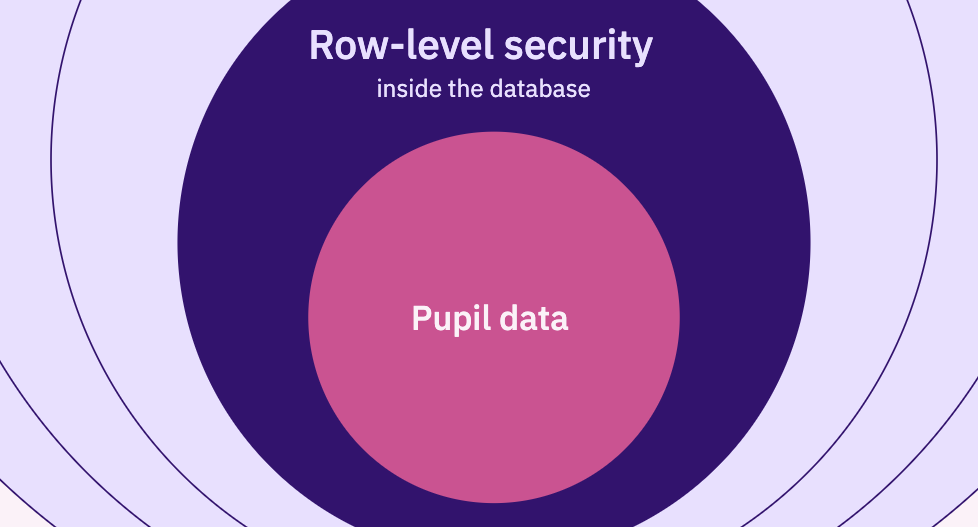
How Trellis protects pupil data
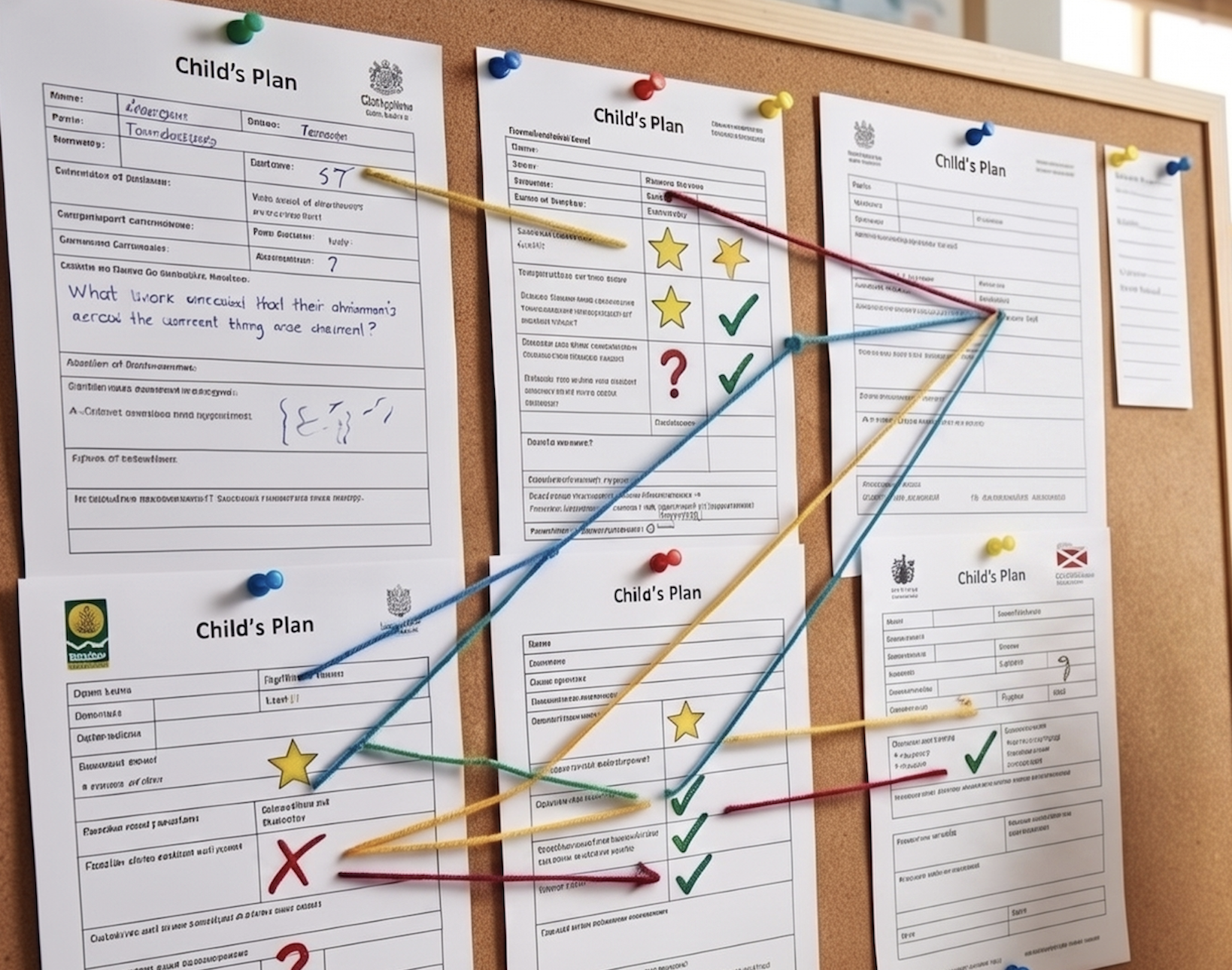
270 Fields and Counting: Finding the Essence in Scotland's Varied Child’s Plans

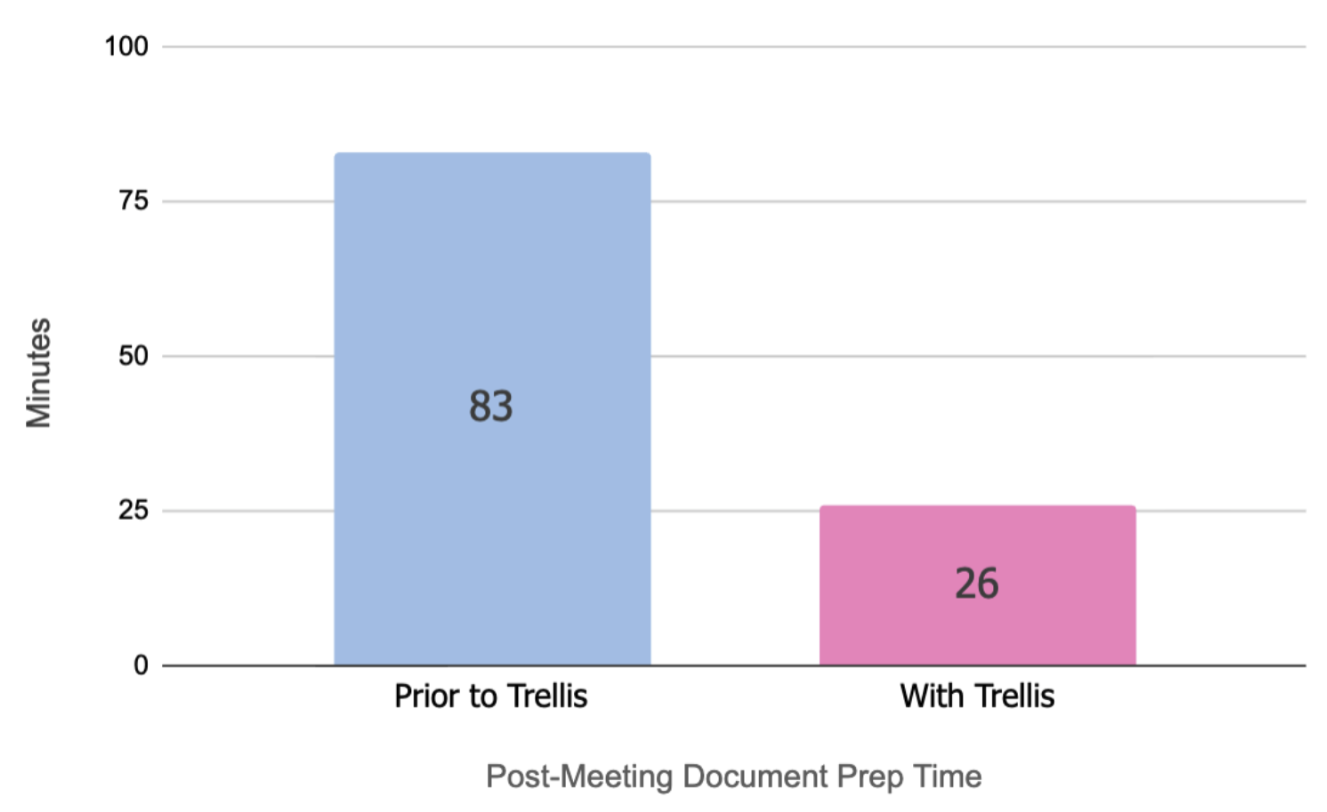
Teacher Survey results


© Trellis Education Ltd. 2026 | Company no. 16500654
